For a great many of the things you might want to do with PeakZebra, no coding is required. Data is entered, is stored for later use, and is subsequently retrieved.
But you should know that it’s also easy to process the data being sent to the WordPress server in whatever way you’d like. There are two methods for doing this (and you can use both at the same time, should you ever need to):
- Creating form rules
- Creating submit program files
The first option is the one to turn to in most cases because it’s by far the easiest. The “submit file” option is discussed on its own documentation page.
Form rules are something you create from inside your client account at PeakZebra.com.
So begin by logging into your account on PeakZebra.com. On the menu to the right top of the page, you’ll see, next to the Logout link, a link for MyTools. Click this and you’ll land on a page with a form that looks like this (or something similar):
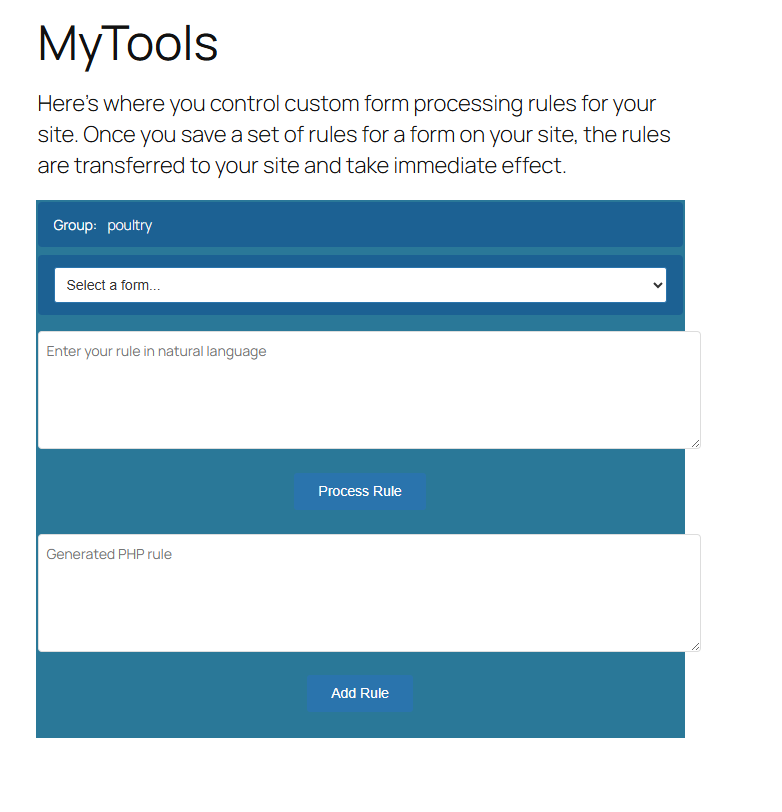
The dropdown field at the top of the page shows you all the forms you currently have on your site (if you’ve just created a new one, it can take up to an hour to show up here, but you can force an update by selecting PZforms Sync from the Settings menu dropdown):
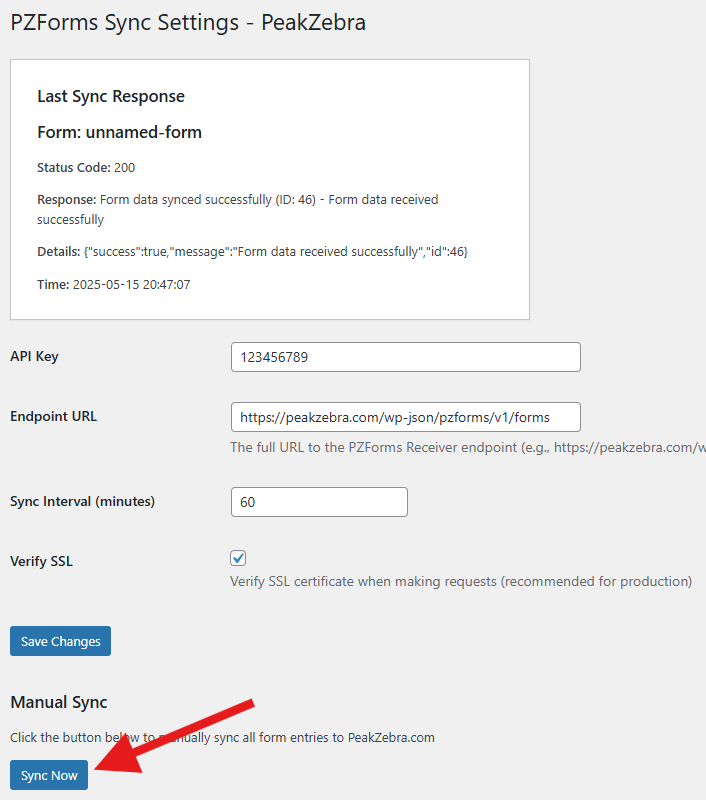
Assuming PeakZebra.com is up to date, your forms will be listed in the dropdown and you should select the form you want to make rules for (assuming you’ve given each form block a name unique across your site, you’ll see all the forms listed and each form will have its own rules).
Let’s say you want to check the zipcode that a user has entered in the form to see if the address is in California. Zipcodes in California range from 90001 to 99999, so you can check by typing what you want to happen into the “natural language” text field. You might type:
use the date from the previous rule and check if it falls on Christmas. if it does, add another week and save that to end_dateYou can have as many rules as you like, so it’s best to keep each rule simple and discrete. When you’ve written down what you want the rule to do, click the Process Rule button and the system will use AI to write a PHP version of the rule, placing it in the second textarea field. The code for the example above might look like this:
if (date("m-d", strtotime($passed_value)) == "12-25") {
$end_date = date("Y-m-d", strtotime($passed_value . "+1 week"));
}
The rules save themselves automatically (on PeakZebra.com).
To get the rules for your your forms transferred down to your site, return to the admin console for your site and click on “Rule Fetcher” on the admin side menu.

This causes program files to be automatically written and then automatically transferred down to your WordPress server. It’s also stored on the PeakZebra server, of course, so that you can change and update rules as needed in the future. Each form for which you’ve created a rule set will have a program file created for it in a reserved folder on your system and the appropriate ruleset will be executed as the form is processed each time a form is submitted.
This approach will handle the vast majority of things you might need to do with your data, but you can also take a more hands-on approach and write a PHP file yourself, which is described in the Submit Files section.


